How to
From an installer to a running service.
A worked Sabbath, in the order it happens. Nothing here assumes you have done this before. The full manual — every panel, every setting — ships inside the app under Manual in the left rail, searchable and working with no network. It is also here as a printable PDF, for a booth that would rather have it on paper.
Step 1 · first-time setup
Work through Settings, left to right
Open Settings with Ctrl+9 or the gear at the bottom of the rail. Click Save Settings at the end of each tab — except in Maintenance, where every button acts immediately.
Church
Church name, logo image (a PNG with transparency works best), the clock on the logo screen, your giving URL and button label, and your CCLI licence number.
Displays
Pick the monitor the congregation sees. Add one screen per extra monitor and give each a feed: Platform, Choir, Lobby or Key. Press Identify once when you set the building up and you will never wonder which monitor is which again.
Content
Default translation, the projection typeface, and what the music bed does when a video with its own sound starts.
Connections
The phone remote's port (3000 unless something else has it) and the two four-digit codes — one for the platform, one for the booth. Watched folders, so media appears in the library and decks reload when someone saves them on a shared drive.
Your decks, and a phone
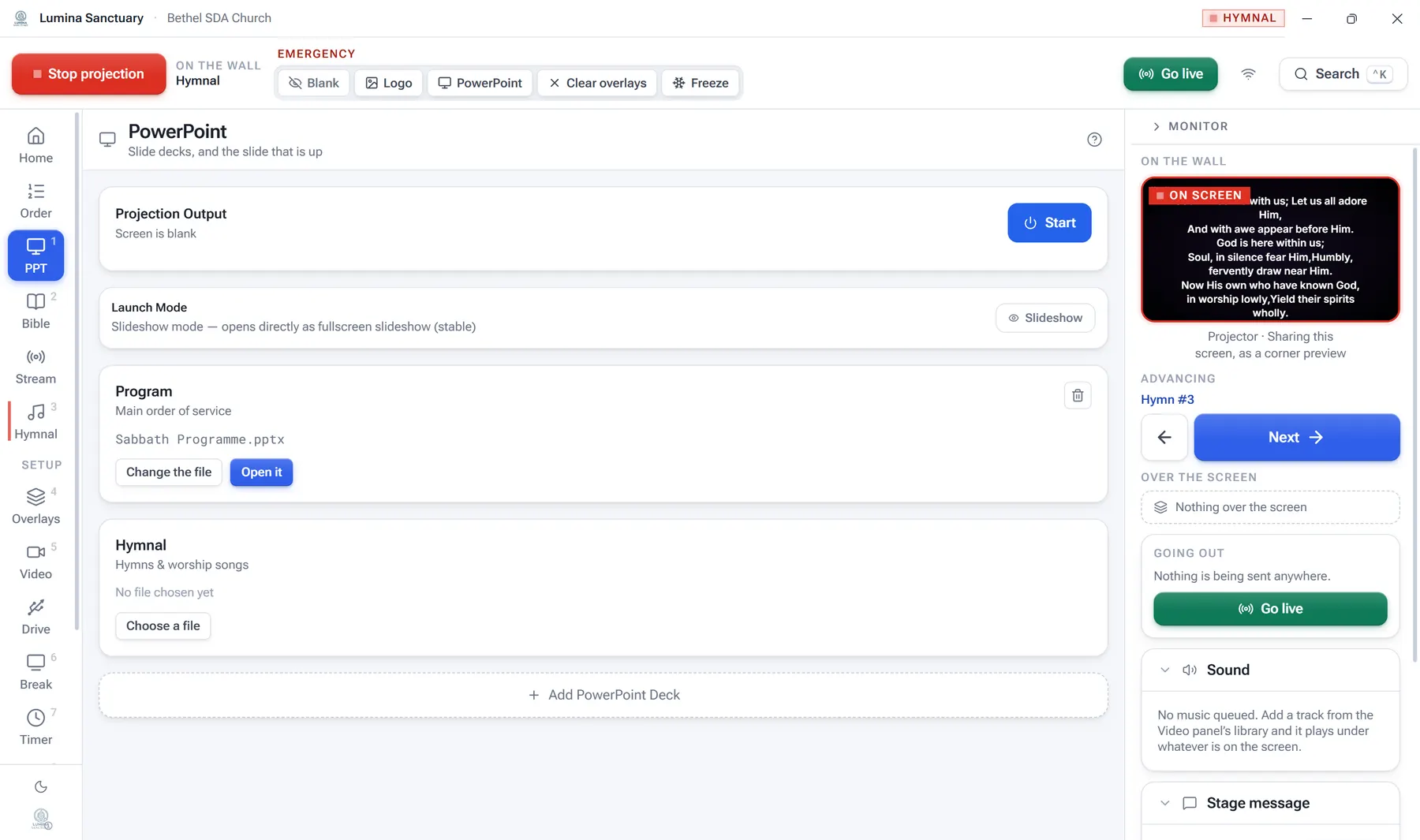
In PPT, point Program at your main order-of-service deck. Then click the Wi-Fi button in the top bar and point a phone's camera at the QR code that is already showing.
Step 2 · Friday afternoon
Everything that can be decided before sundown, decided before sundown.
1 · Build the order
Name it — Sabbath Morning, 30 August. Add the morning in the order it happens: the Sabbath School items, then the Divine Service. Use Note for the parts that put nothing on screen, so the order still matches the bulletin.
2 · Set the clock
Set Begins to the Sabbath School start time and put minutes against the items you want to plan around. The header then shows when each part is expected to start.
3 · Songs and passages
Add anything the worship team sent that is not in the hymnal under Our songs. Type the sermon passages into the Bible queue — they are checked as you type, so a typo is caught on Friday rather than on the wall.
4 · Break screen and media
Add the pre-service slides and set how long each holds. Put the offering video in the library and trim its ragged opening once — it will play that way every time from now on.
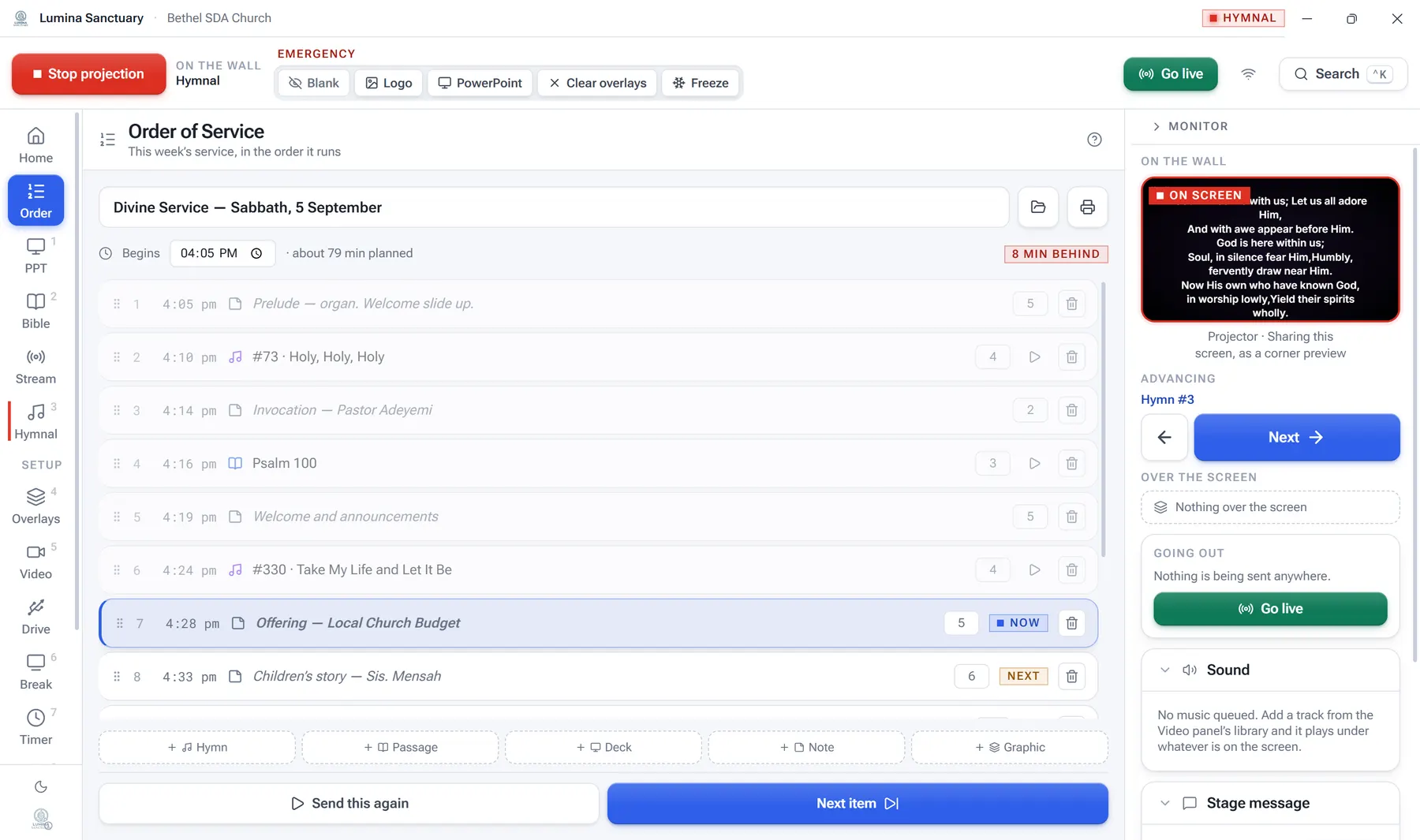
Built on Friday; walked on Sabbath with one button. The badge in the header tells you whether the morning is running to time.
Step 3 · forty minutes before
The foyer looks after itself
- Turn everything on. Check that Settings → Displays says every screen has a monitor.
- Break → Start. The pre-service loop goes up.
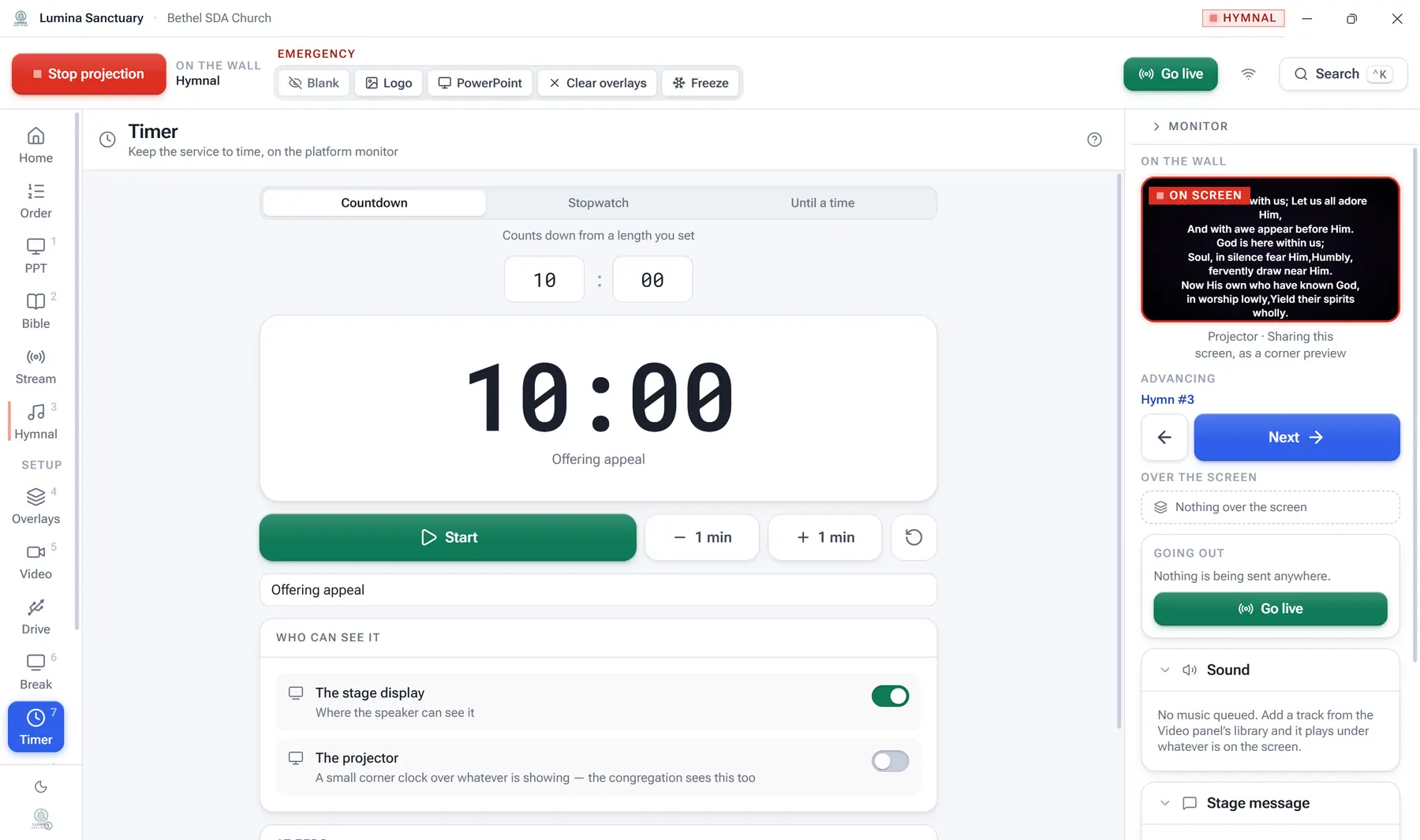
- Timer → Ends at a time, set to the Sabbath School start, labelled "Sabbath School", shown on the projector, with At zero → Show the logo.
- If you are streaming: check the picture, check the three meters are moving, then go live a few minutes early.
Step 4 · through the morning
Start, then Next item
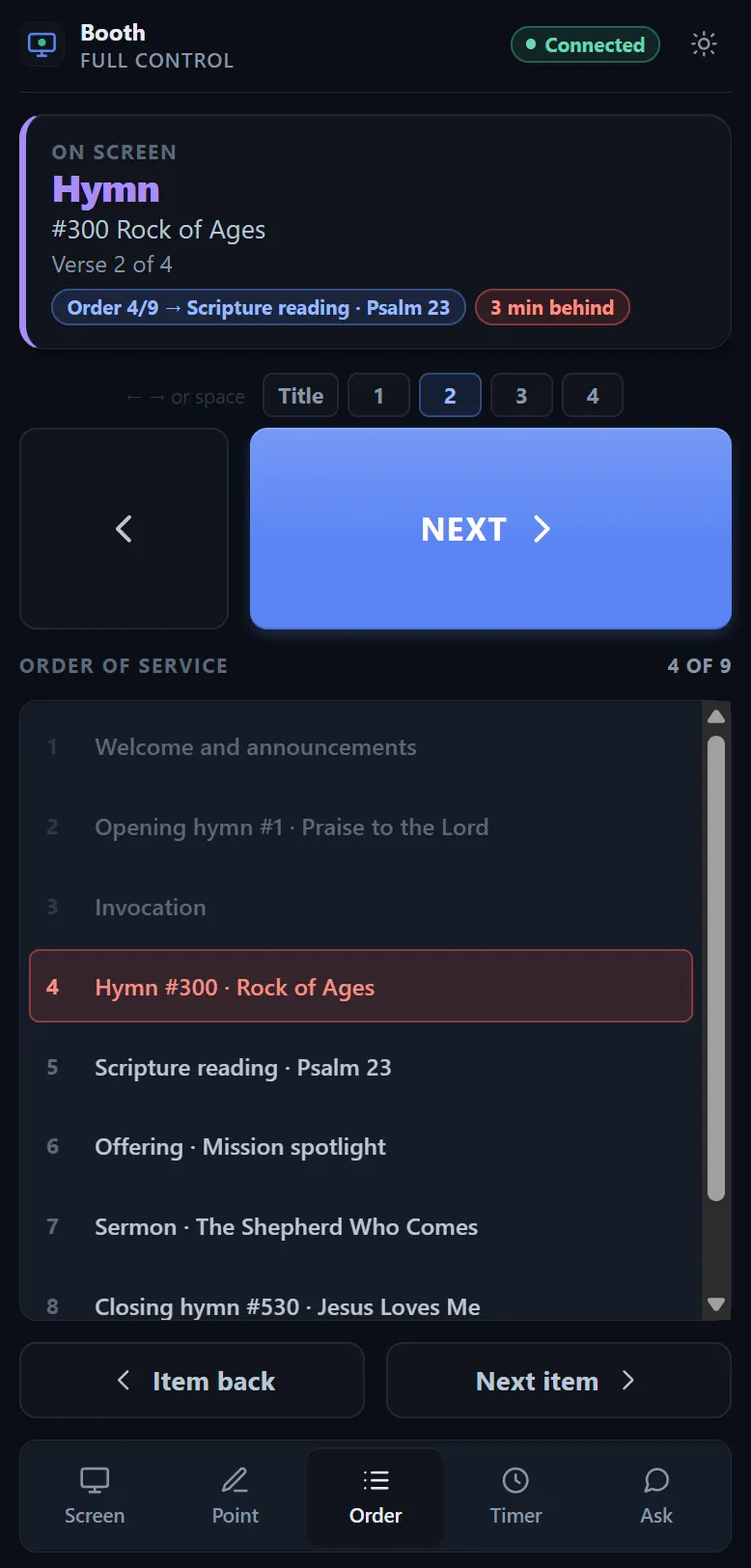
- Order → Start puts the first item up. Next item walks it.
- Between Sabbath School and the Divine Service, use Logo or the break screen rather than leaving the last lesson slide up.
- While a hymn is on screen, open the next one. It goes to Ready, not to the wall. Press Take when the first is finished.
- If the hymn has a recording, switch Instrumental on and it advances the stanzas itself. Every recording arrives already timed, so there is nothing to teach.
- Arrow keys move through whatever is live — verses, passages or slides — from any panel.
- If something goes wrong, press B. The screen goes black and you have as long as you need.
Step 5 · after the benediction
- Stop the stream, so the channel shows a finished service rather than one that stopped and never ended.
- Blank the screen, or leave the logo up.
- Quit the app. Any update that arrived during the service installs now.
- Next Sabbath starts here: in the saved-services list, Duplicate this one.
Not everything happens at the desk
Drive it from a phone
Any phone on the church Wi-Fi can turn the page, walk the order of service, point at the screen and watch the clock — and the booth can pause it or put a note on it without anybody moving.
Give the pastor a guest one. It cannot black out the church.
How to use the phone remote →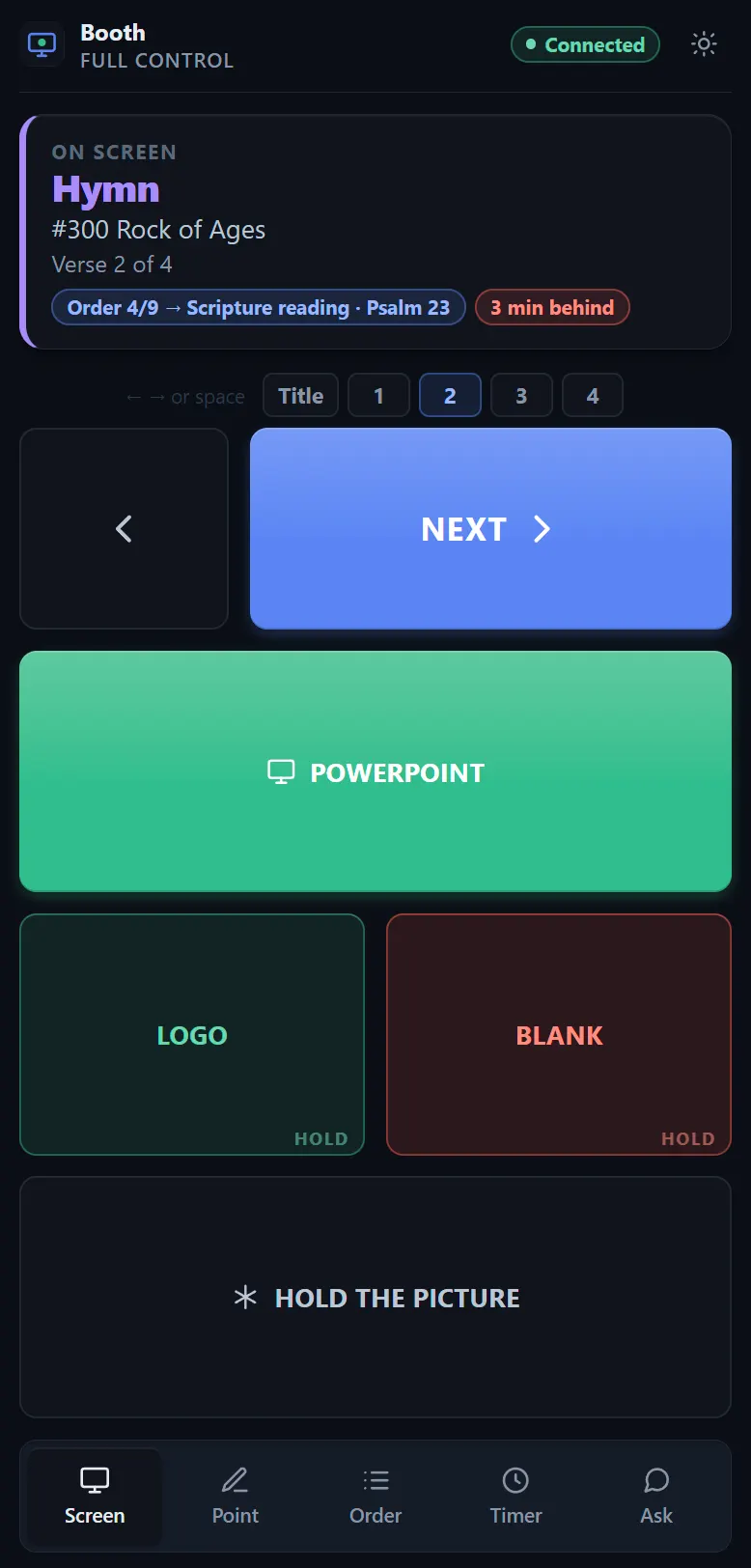
Print this and tape it to the desk
Keyboard shortcuts
Anywhere in Windows
Projector control
Navigation
Letter and arrow shortcuts only fire when you are not typing in a text field. A modifier means you are reaching for something else — Ctrl+B never blanks the screen. While a dialog is up, Escape closes the dialog rather than blanking the output.
Once, with nobody in the building
Six rehearsal drills
Each takes a minute, and each prevents a specific Sabbath.
The panic drill
Put something on the projector. Alt-tab into PowerPoint so the app is behind it. Press F9. The screen should go black.
The freeze drill
Put a hymn up. Press F. Load a different hymn, switch to Bible, come back. The congregation should still be looking at the first hymn.
The unplug drill
Unplug the platform monitor's cable. The alert line should say so. Plug it back in — it should come back with its message and its place in the order intact.
The prepare drill
With hymn A on screen, open hymn B and step it to verse 3. The dashboard should read A live, B ready at verse 3. Press Take — only now does the wall change.
The stream drill
Go live with every destination switched off and a copy kept. Watch the three meters move. Stop. Find the file. You have tested the whole chain without broadcasting anything.
The restore drill
Take a backup. Change the church name to something silly. Restore the backup. You now know the safety net works before you need it.
Something not behaving? The app's own manual carries the full troubleshooting section and every error message with what to do about it. Start with the FAQ.