FAQ
Questions churches ask first.
If the answer you need is not here, the full manual inside the app carries a troubleshooting section and every error message with what to do about it.
Getting it
+What does it cost?
Nothing. It is free for any congregation to install and use, with no account, no licence key and no limit on the number of machines. It is not open source — the source code is not published.
+Does it run on a Mac?
No. Windows 10 or 11, 64-bit, only. The live PowerPoint control is built on a Windows technology that has no equivalent elsewhere, so there is no macOS or Linux version and none is planned.
+Windows says the publisher is unrecognised. Is that normal?
Yes. The installer is not code-signed, so Windows SmartScreen warns about it. Choose More info → Run anyway. Only ever install a copy you downloaded from this site.
+Do I need Administrator rights to install it?
No. It installs for the current Windows user. If your church machine is locked down by an IT policy, that usually still works.
Running a service
+Do I need PowerPoint?
Only if you want to project PowerPoint decks. It must be a real installed copy of PowerPoint, not the browser version. Everything else — hymns, scripture, video, overlays, streaming — works without it.
+Can I use it with one screen, just to try it?
Yes. You can learn the whole app on a laptop at home. For an actual service you want a second output for the projector, so the operator's screen and the congregation's screen are different things.
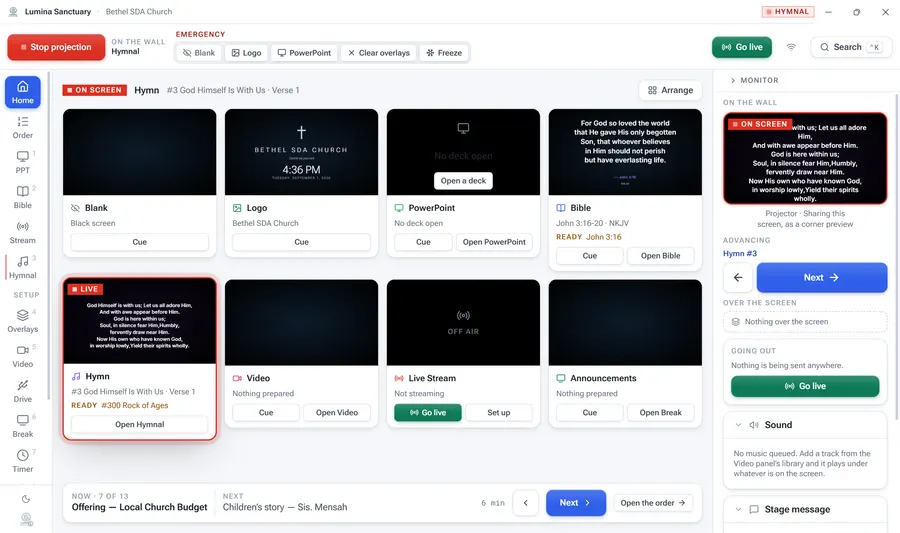
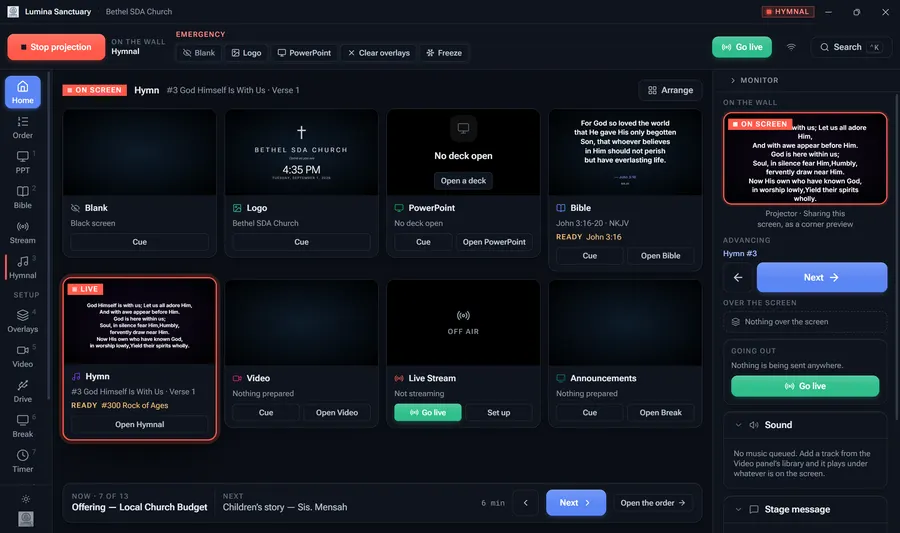
+Can the operator’s window be dark? The booth has no lights.
Yes — one button at the bottom of the left-hand rail, and it is remembered. Dark is what most booths run: a white screen at the back of a dark sanctuary lights the operator’s face and everyone around them. Light is easier in a bright room, or on a projector-lit desk at the front.
The congregation’s screen is a separate decision. Switching the window over offers to take the projector with it, and a church that wants the wall dark while the booth is light can pin the screens in Settings and be left alone.
+We have no pianist. Can it play the hymns?
Yes. 610 hymns come with an instrumental recording, every stanza already timed to it. Switch it on in Settings › Content › Instrumental — the whole feature is off until you do, and until then the Hymnal panel is exactly as it was. The recordings then download in the background, 2.8 GB once, with any hymn you open fetched first; after that they play without an internet connection. A second switch in the Hymnal panel says whether you are using them today — both have to be on before anything plays — and from there each of those hymns gains one switch: on means the recording plays and the words follow it, off means you drive. There is nothing to choose and nothing to teach. The hymns without a synced recording say so, and are driven by hand.
+How does it know when to change the verse?
You tell it once. Nothing can know how long a recording’s introduction is, so it does not guess: the first time you play one it holds the title slide and waits for you to press Next verse when the singing starts. Every later stanza follows from that one press, and it never asks again. Corrections are remembered too, so the hymn is a little more right each time it is sung. If you move the words yourself, the recording stops advancing them and waits for you.
+Will searching for a hymn put it on the screen?
No, and this is the rule the whole app is built around. Opening a hymn while something else is live marks it Ready. Nothing reaches the congregation until you press Take.
+Something has gone wrong on the wall. What do I press?
F9. It blanks the projector from anywhere in Windows, even if PowerPoint or a browser is in front of the app. Then fix things at your own pace and put the next thing up.
+Can a volunteer with a phone black out the projector by accident?
No. Each paired device gets a role, so you can give the booth full control and the pastor a remote that moves through what is up, points at it, and can look up a hymn or a passage and send it — but cannot take the screen away. Blank and Logo must be held rather than tapped, and the platform remote has no hold-to-fire control at all, so a pocket cannot fire them.
Content and licensing
+Which Bible translations are included?
Public-domain texts are bundled and work offline from the first launch. Translations that are still in copyright are not included, and you should not add them unless your church holds the rights to project them. See acknowledgements.
+Does including the hymnal cover us for copyright?
No. Bundled hymn texts do not grant your church any licence to project or broadcast them. Reporting projected songs remains your church's responsibility under whatever licence it holds, such as CCLI. The app can store your CCLI number and keep a record of what was shown to help with reporting — it does not file anything for you.
+Can I stream a song or a film I bought?
Owning a copy is not the same as holding streaming rights, and platforms take down services for it. Check before the service, not after the claim.
Streaming, privacy and support
+Do I need OBS as well?
No. FFmpeg is inside the installer and does the encoding. You choose a camera, a microphone and a destination, and the app streams. There is nothing to install alongside it.
+The stream keeps stuttering. What do I change first?
Drop the broadcast from 1080p to 720p. Most trouble is a modest machine encoding 1080p while PowerPoint renders a slide, or a church upload that cannot carry the bitrate. 720p at a steady rate looks better than 1080p that breaks up.
+Does it send my data anywhere?
Your services, songs, notes, media and settings stay on your machine. The app reaches the network when you make it: streaming to YouTube, Facebook or an RTMP address, playing a YouTube video, and checking for updates. See the privacy policy.
+Will an update install in the middle of a service?
No. Updates download quietly and install when you close the app. Nothing restarts under you.
+How do I move everything to a new church computer?
Settings → Maintenance writes a backup file. Install the app on the new machine and restore it. Media files themselves live where you put them, so copy those across too and keep the folder layout the same.
+Who do I ask when something breaks?
Start with the manual inside the app — press Ctrl+F in it and search the error. If that does not settle it, get in touch. This is a one-person project, so answers are best-effort and not guaranteed, especially on a Sabbath morning.